
Choosing the Right Slide Creation Workflow for Your Research
AlphaSense supports end-to-end research and deliverable workflows, from surfacing insights and synthesizing analysis, all the way to producing client-ready slides and reports. This article covers the various ways to create slide deliverables in AlphaSense.
- Building Slides from a Generative Search Response
- Building Slides from Scratch (No Prior Search Needed)
- Scheduling Automated Slide Deliverables with Agents
- Creating Slides from a Workspace
- Financial Data Integration
- New Slide Layouts
- Slide Template Support
- Citations
Building Slides from a Generative Search Response
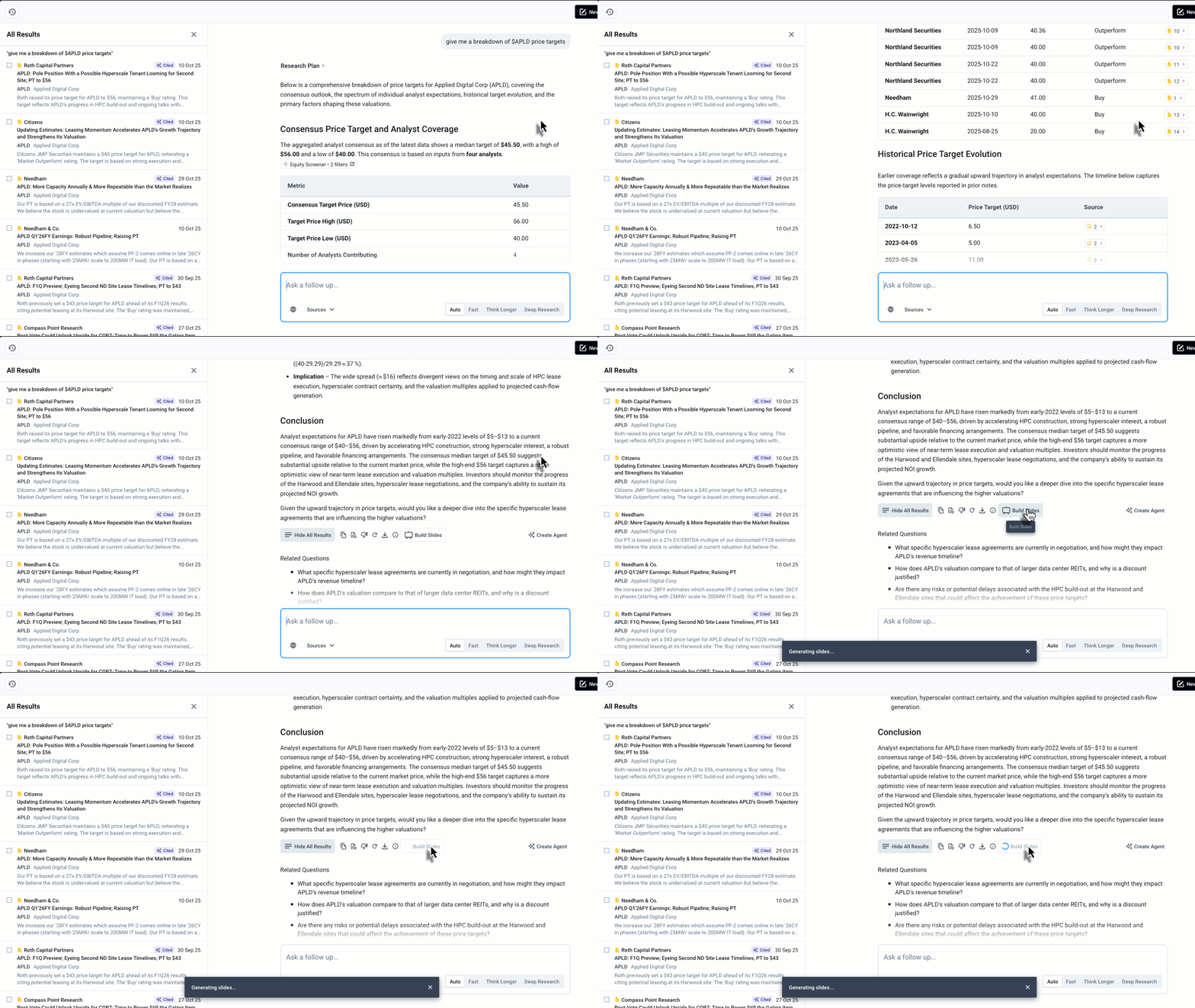
If you've been researching a topic in Generative Search and want to turn your results into a presentation, you can build slides directly from any response. Look for the Build Slides button at the bottom of your Generative Search output to get started.
This is useful when you've had a research conversation, feel confident in the output, and want to package it as a deliverable without starting from scratch.
Building Slides from Scratch (No Prior Search Needed)
You can also prompt Generative Search to create slides directly, without first conducting a back-and-forth research session. Some examples of what you can ask:
- "Prepare a one-slide briefing on the most important macroeconomic trends influencing the fast casual restaurant industry, focusing on consumer spending, inflation, and labor costs."
- "Create a single-slide summary of all expert calls related to [company watchlist] discussing GLP-1 drugs."
- "Build a 10-slide deck pitching Robinhood as an attractive acquisition target."
You can be specific about the number of slides, topics to cover, structure, and formatting preferences.
To get started:
- Select the Slides button.
- In the prompt field, describe the slide you want — include the topic, focus areas, and any formatting preferences (e.g., one slide, bullet points, executive summary).
- Press the Up Arrow (or Enter) to run your prompt.
- Review the slide output in the canvas on the left.
- To make changes, type your revisions directly in the prompt field and run again.
Scheduling Automated Slide Deliverables with Agents
Once you have a slide prompt you use regularly, you can turn it into a scheduled agent. For example, a monthly GLP-1 expert call briefing slide can be set to run automatically and delivered to your inbox on a schedule you define. This is particularly useful for recurring briefings or team updates.
To set this up, save your slide prompt as an agent and configure the scheduling options, including document date range and delivery day.
Creating Slides from a Workspace
If you organize your research in Workspaces, for example, by client, deal, or due diligence project, you can create slides directly from the documents within a workspace. You can instruct AlphaSense to reference only documents in that workspace, or to draw from the full AlphaSense content library.
Financial Data Integration
Slide Agent can now pull financial data directly into your slides, covering full financials, share price time-series, multiples, margins, credit and capital structure metrics, segment and geography revenue and KPIs, and customer concentration.
Some examples of what you can ask:
"Add the 5-year historical and 2-year forecast for @Company: revenue, gross margin, EBITDA, EBITDA margin, operating margin, net income, and EPS."
"Add a slide showing revenue by segment for the last 5 fiscal years, in dollar amounts and percent of total."
"Add revenue by geography for the last 3 fiscal years, in dollar amounts and percent of total."
"Add a slide covering the last 5 fiscal years of capital allocation: operating cash flow, capex, free cash flow, share buybacks, and dividends paid."
"Pull in the last 8 quarters of segment revenue."
- "Build a valuation slide with EV/EBITDA, EV/Revenue, and P/E multiples, plus a share price chart comparing @Company to two peers."
- "Add a credit and capital structure slide with cash, debt, net debt, net debt/EBITDA, and current and trailing interest coverage."
- "Create an earnings analysis slide showing quarterly revenue with year-over-year growth and guidance versus actual for the last four quarters."
- "Add a customer concentration slide showing top customer revenue exposure over the last 3 years."
- "Build a DCF support slide with EBIT, tax rate, D&A, and working capital changes for the last 5 fiscal years."
New Slide Layouts
AlphaSense now offers 50 or more new slide layouts, curated from real client use cases. Many are built for investment banking workflows, but all users can access them. These layouts use a banking-standard 4:3 aspect ratio.
To use a new layout, prompt Generative Search to create the specific type of deck you need. For example:
"Create a PE-style target screening deck about @Company."
Slide Template Support
Upload an existing PowerPoint deck to Generative Search, and AlphaSense will generate new slides using your fonts, colors, and layout — so every deck matches your brand automatically.
Tip: For best results, upload a file with a Slide Master configured. The Slide Master tells AlphaSense how to apply your fonts, colors, and layouts correctly.
How to upload a template
- Open Generative Search.
- Select Slides beneath the search bar.
- Enter your prompt.
- Click the Template dropdown arrow.
- Select Upload New Template.
- Choose your file and click Extract & Save.
AlphaSense extracts the styles and layouts from your deck and saves them as a reusable template.
Where you can use a template
Once saved, apply your template from any of these entry points:
- Generative Search query → Build Slides
- Pre-built Workflow Agents
- Custom Workflow Agents
- Build Slides button after a Generative Search report is generated
- Ask Follow Up flow
The Template Library lets you upload, save, rename, and set a default template at the user level — so you never have to re-upload it. Every slide you create automatically pulls your default template's master, colors, and fonts.
What Template Support doesn't do (yet)
- It won't replicate a specific slide and swap the subject (e.g., turning a Tesla slide into a SpaceX slide).
- It won't fill out an existing template with your content.
Coming soon: support for firm-specific slide layouts.
Citations
All slides generated in AlphaSense include inline citations linked to source material at the sentence level. You can click any citation to be taken directly to the source document within AlphaSense.
Bracketed citations like [12] now render as clean superscripts on the slide, cutting down on visual clutter in dense text blocks.